Hide the menu and readouts for a clear view
A new Menu button, or the P key, hides every panel and key hint so the carrier fills the screen. Built mainly for phones.
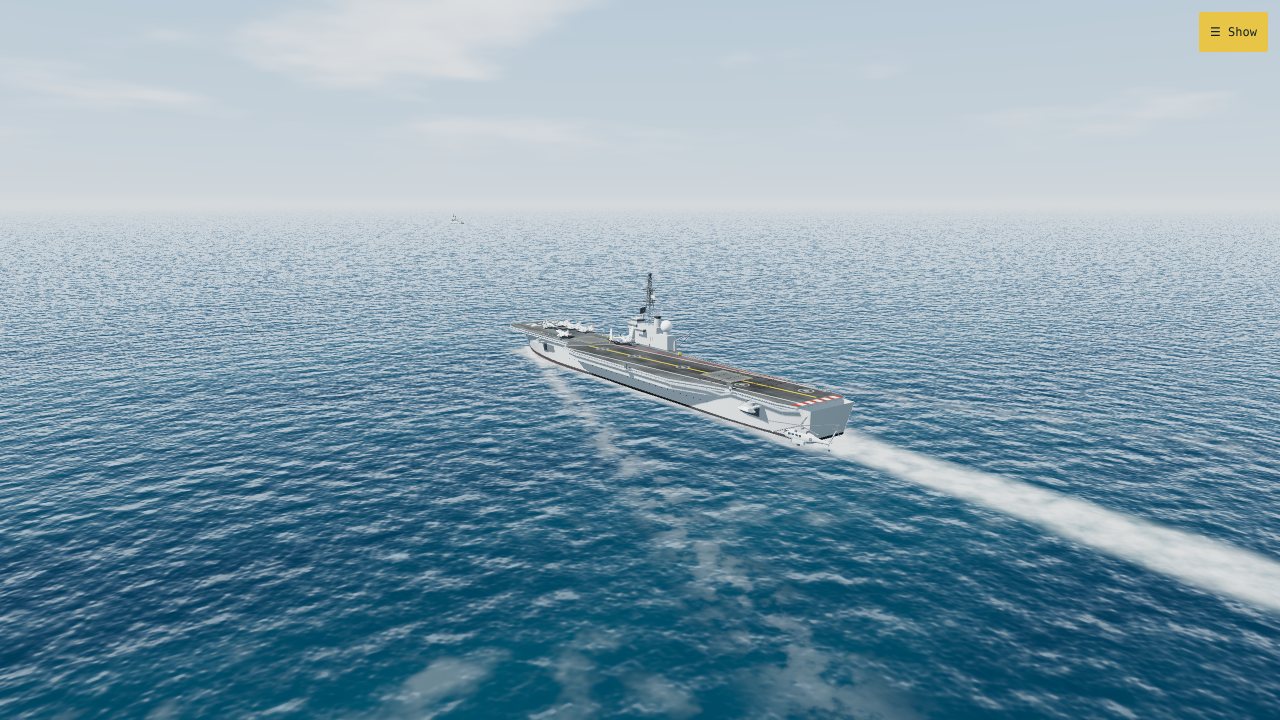
On a phone the panels cover a lot of the sea. I have added a toggle that clears them away.
What it does
A button sits at the top right of the screen. Tap Hide and the title panel, the readouts, the camera and settings panel, the tutorial card and the key hints all disappear. Tap Show to bring them back. The button stays put either way, so you cannot lose it.
On a keyboard, press P for the same thing.
Details
- The sim remembers your choice in the browser, so it stays hidden next time if you left it hidden.
- Dragging to look around, and pinching to zoom, work as before with the panels hidden.
- The flight HUD is drawn separately and is not hidden. It stays on while you fly.
- On narrow screens I also moved the readouts panel below the title, because the two used to overlap.
Still approximate
There are no on-screen flight controls for touch yet. Flying the Skyhawk still needs a keyboard. That is the next thing to look at.